The rumors about whether or not KitKat would make it to the Galaxy S3 got us thinking about the best custom ROMS for the Galaxy S3 on the KitKat code base. Even if the firmware does now look like it will arrive in some parts in the next couple of months it could still be months longer before it has filtered out to everyone. Even then there's no guaranteeing it won't be chock full of bugs like the Galaxy S4 firmware. But why wait when you can install one of the many custom ROMs already available?
Of course we'll start proceedings with the most popular custom ROM cooked especially for the World's Most Popular Android. The latest version of this ROM, CM 11, is based on the stock Android 4.4 firmware. Among the advantages of this ROM, in addition to the numerous and timely updates, are improved battery notification, profiles and themes, and the ability to overclock (modify the rate at which processor cores work).
CyanogenMod isn't perfect – there have been some camera app issues reported – so many users looking for an alternative turn to OmniROM. OmniROM is actually built largely by former Cyanogen developers, and despite being recently launched is already achieving great success. Among the novelty of this ROM is the possibility to optimize battery life by creating profiles. Check the latest nightlies available for the Galaxy S3 on the OmniROM website.
SlimROM's team launched a cooked ROM based on Android 4.4.2 KitKat which is interesting because it is supposed to be lighter, hence the name. SlimKat aims to set your device's memory free in order to offer your Galaxy S3 more freedom to use dynamic applications. The latest version,RC3, was launched few weeks ago and has been performing well. Those who have installed RC3 say it is smooth and offers interesting options for customization. We tend to agree.
The Resurrection Remix ROM is based on the latest draft AOSP (Android Open Source Project), and comes from the point of view of open source everything: so you'll find features taken fromAOKP, CyanogenMod, Paranoid Android, and manufacturer stock ROMs. The great advantage of this ROM is that it offers the best of each of the most popular custom ROMs. There's a lot going on though, so you'd want to be right into your ROMs to make the most out of this one.
NeatROM is another Android 4.4.2-based AOSP ROM that comes from the hand of a recognized developer called Sale from XDA Developers. It is available for both the Galaxy S3 and Galaxy S2.NeatROM is like a tricked out SlimKat with tons of customizations and characteristics such as those found in NOVA Launcher as well as some typical features such as the KitKat camera widget on the lock screen and the classic transparent notifications bar.
Has anyone tried these ROMs on your S3? If so, please let us know your favorites and why!
15 custom XDA ROMs for your Samsung Galaxy S4 GT I9500
The Samsung Galaxy S4 is almost a year old now and only recently it was updated to the Android Kitkat v4.4. However, the amount of bloatware that Samsung gives along with your smartphone firmware is enormous. Most of these ‘free’ apps pre-loaded on the smartphone is unwanted unless you really make use of each one of them. These unwanted apps run in the background, make your phone sluggish and also occupy precious space in your phone’s internal memory.
Most Android phone users suffer with these ‘free’ apps, but some go a step ahead, root the phone and get rid of the bloatware completely. Some even change the original firmware, upgrade or downgrade the Android versions, remove and install their own UI or home launchers or simply delete all unnecessary applications and services to make their phones blazing fast.
As for Samsung Galaxy S4 users, the process of tweaking the firmware is simple, but do note; you will lose warranty (if any). And if you tend to make mistakes while flashing the phone, you might end up with an expensive paper-weight.
Disclaimer:Rooting your phone will lose warranty and can permanently damage your phone. Do this at your own risk.
Here is some good news for Samsung Galaxy S4 users. The XDA Forums have plenty of custom built ROMs foe the GT-I9500 model. While some ROMs are based on stock, others are AOSP-based and a few are completely ported from other devices. Here are a few you can try out.
Presently, I am using MIUI and am most happy with it. I tried most of the custom ROMs out there and found features that I require on my phone which MIUI offered.Some features are not available across all ROMs. In that situation, it is best to make use of third-party apps to fulfill your needs. I keep changing my phone’s ROMs every week to try out newer ROMs. Personally, Samsung’s official Kitkat update is not satisfactory, so I preferred to roll back to Jelly Bean v4.2.2 and stick to MIUI.
!How to Root & Install CWM on Samsung Galaxy S4 GT-I9500/GT-I9505 [Guide]
The method for both the devices is same, you just need to select the right file for your device, please see your device model number care fully.
Before we begin, make sure that you have battery charged over 60 % and have backed up all your important Contacts, Call Logs & Messages. It is highly recommended in case of any mishap or data loss to backup all your important data.
Please keep in mind that as soon as you root your device, you will void the warranty of your device, so everything you do, do it at your own risk.
Download and install Samsung USB drivers first of all
Download, unzip and run Odin PC.
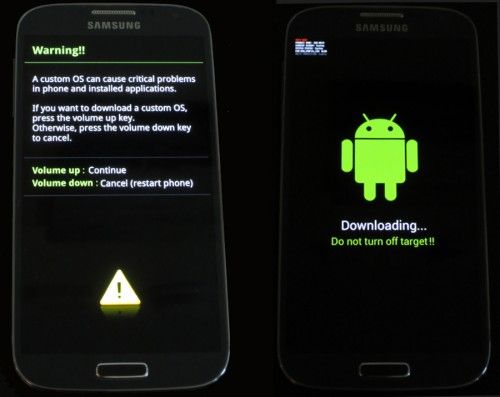
Put your GS4 in download mode by pressing and holding Volume Down + Home + Power key at the same time, you should get a screen showing a warning and asking to continue, press Volume Up to continue.
Now your phone should be in downloading mode. Connect your phone to your pc using original Samsung Data Cable.
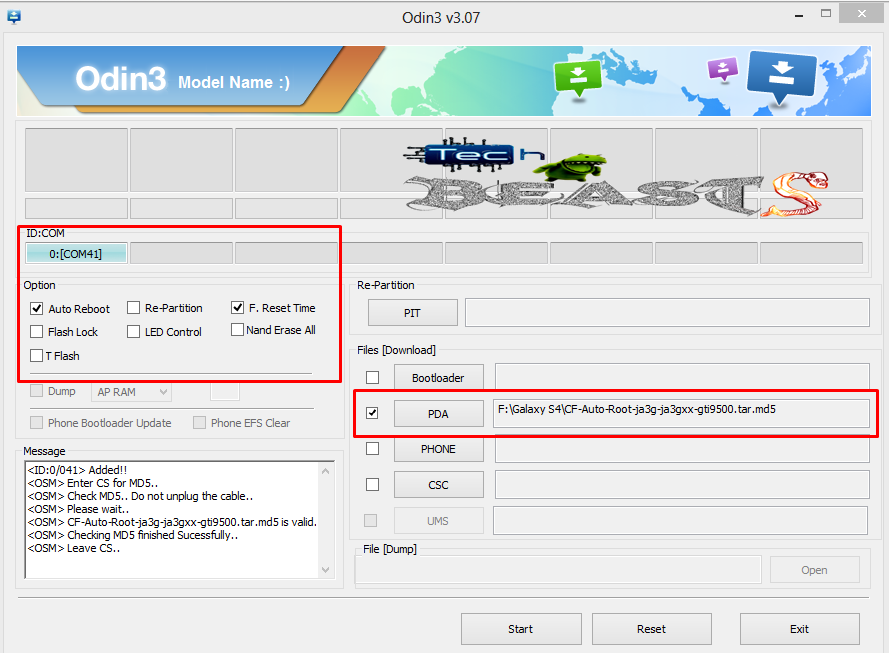
As soon as Odin detects your phone the ID:COM box will turn light blue.
Click on the PDA tab and select the file you downloaded in step 3.
Your Odin screen should look like this now
Make sure that the options selected in your odin are same as shown above.
Click Start and the root process should start showing you a process bar in the first box above ID:COM.
The process is quite fast and will finish in a few seconds, as soon as it ends, your phone will restart and you’ll see the CF Auto root installing SuperSu on your phone.
Congratulations you have your Samsung Galaxy S4 rooted now!
Installing ClockworkMod Recovery [CWM]
The method explained above is basically for beginners and does not install a custom recovery in your phone, it simply installs a stock recovery with having your phone rooted. Custom recovery allows you to modify in your phone in so many other ways like flashing custom roms, flashing mods etc.
In order to flash a custom recovery after rooting your SGS4 download the following file.
Now you need to follow the same procedure explained above to root your phone but this time instead of giving it CF Auto Root file in the PDA tab you need to give it the downloaded CWM Advanced Edition [Philz Touch] file for your phone, the recovery will be flashed within a few seconds. You can enter the custom recovery now pressing and holding Volume Up + Home + Power Key.
In Short the method is explained here once again.
- See more at: http://techbeasts.com/2013/08/17/how-to-root-install-cwm-on-samsung-galaxy-s4-gt-i9500gt-i9505-guide/#sthash.FrvNmmm0.dpuf
1.Download the CWM Recovery according to your phone.
You do not need to unzip this downloaded file as it is already in .tar.md5 format.
2.Open Odin.
3.Put your phone in download mode and connect it to your computer using the data cable, the ID:COM box should turn now as shown and explained above.
4.Click on PDA tab and select the downloaded .tar.md5 file.
5.Click Start, the process will start and give you a PASS indication above the ID:COM box if it installed the recovery successfully!
That’s all you got to do for installing a custom recovery on your GS4.
Now wondering what to do with your rooted phone?
Here’s the answer for you!
Rooting your phone gives you complete access over all the data which is apparently locked by the manufacturers. This includes removal of the factory restrictions and making changes to the internal system and the operating system. Gaining the root access gives you the privileges to install various applications to enhance the performance of your device, allows you to remove the built-in applications/programs, helps you to upgrade the battery life of your device & install the apps which require the root access for the proper functionality and modify your device in so many other ways e.g using mods and custom roms.
How to keep Root after OTA Updates
The OTA updates rolled out by the manufacturers wipe the root access on your phone. In case you don’t know how you can restore the root access after OTA update, you’ll have to root your phone once again, but there is no need to do it as you can restore it using the OTA Rootkeeper Appwhich is available in the Google Play Store. The app creates backup of your root and simply restores it after any OTA update.
While rooting your phone, please keep it in mind that the Root Process isn’t official and has nothing to deal with Google Inc and the device manufacturer, which is Samsung in our case. Follow the guide carefully to prevent any damages to the device as the method is completely custom.


 Good Luck